4 Open Source Utilities Mac Apps You Need In 2026
MonitorControl for external displays, Maccy clipboard manager, OnlySwitch system toggles, and Droppy's notch controversy. All free for Mac in 2026.
The best Mac utilities solve problems Apple won't acknowledge exist. These three open source apps fix genuine gaps in macOS - and they're completely free.
Droppy - Our Favorite Multi Purpose Notch Tool
Apple gave MacBook Pros a notch without providing any useful way to interact with it. Droppy arrived to fix that oversight - then immediately became a case study in indie app monetization challenges.
Droppy transforms the notch into a functional drop zone. Drag files toward the notch and they hover there for quick access - think spatial clipboard using dead screen real estate. The physics feel satisfying, files snap cleanly to the notch area, and retrieval is intuitive (click or drag back out).
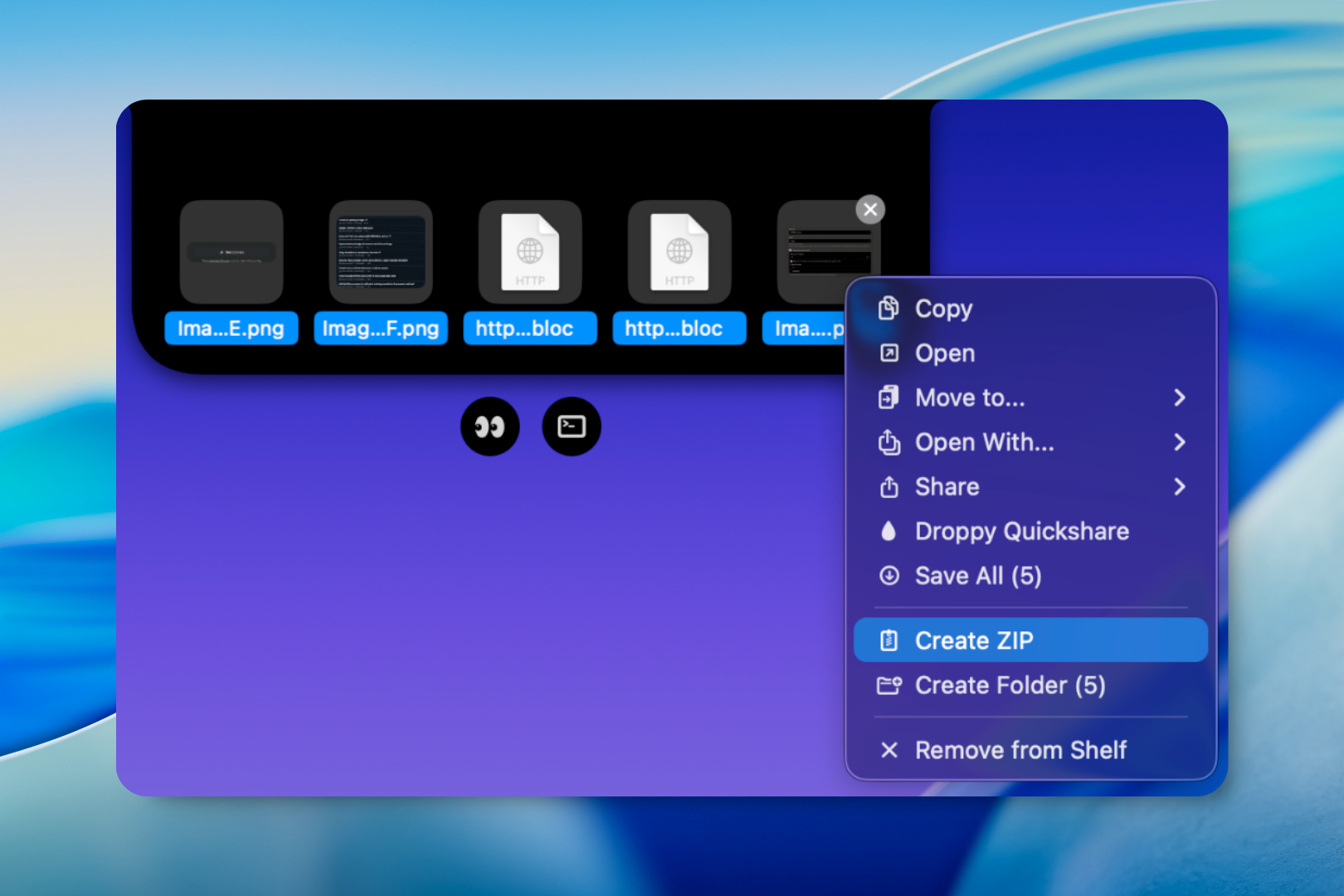
The feature set expanded beyond simple file storage. Quick sharing works well - drag a file to the notch, then share via AirDrop or messaging without opening Finder. Built-in tools include a color picker, screenshot capture, Pomodoro timer, and clipboard history. It evolved from single-purpose utility to menu bar multitool.
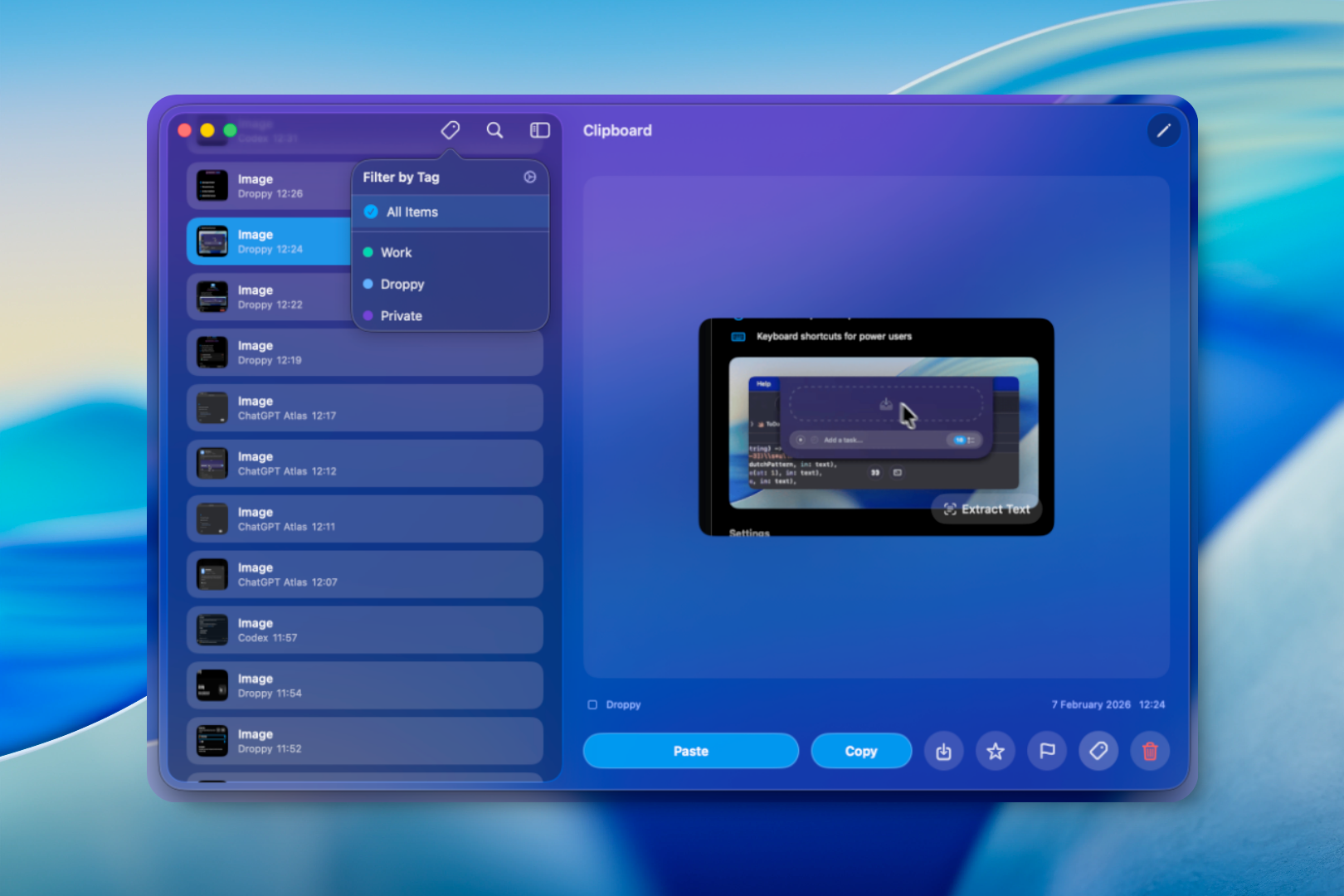
The implementation quality is high - animations are smooth, notch interaction feels native, and edge cases (external monitors, clamshell mode, display scaling) work correctly.
The best part is that it has an active growing extension store with developers working on new features and functionality!
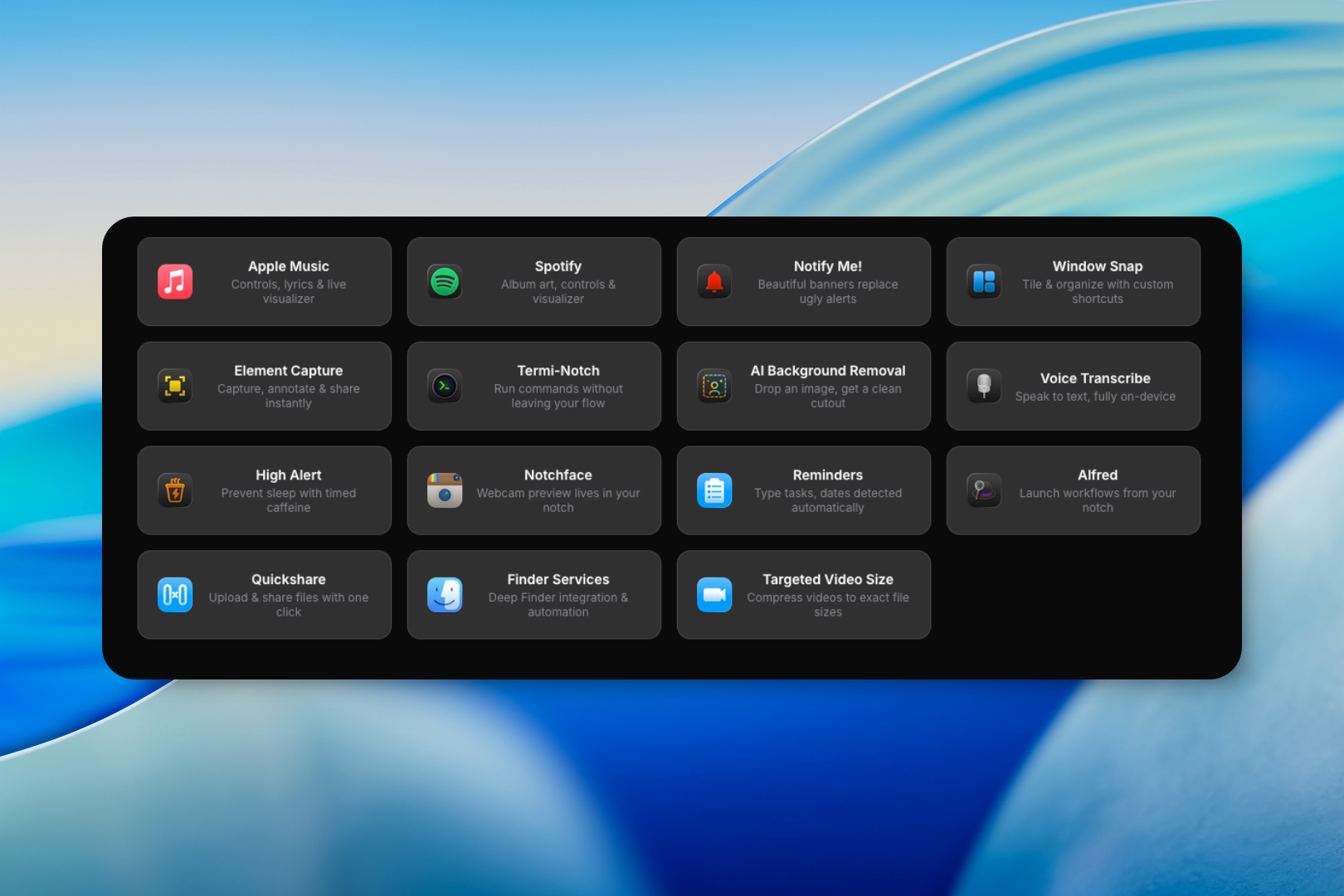
Should you use it? If you have a notched MacBook and frequently move files between apps, share screenshots, or need quick clipboard access, Droppy solves real problems elegantly.
Best for: Notched MacBook owners wanting spatial file management, people who don't already use comprehensive menu bar managers
Platform: macOS (MacBook Pro 14"/16" with notch required for core functionality)
Pricing: Free with limitations, $6.99 (USD) one-time
OnlySwitch - Making The Menu Bar Smaller
Menubar is smaller, you only need an All-in-One switch.
Most macOS settings require drilling into System Settings, clicking through multiple panes, toggling a switch, then closing everything. OnlySwitch consolidates dozens of common toggles into one menu bar dropdown.
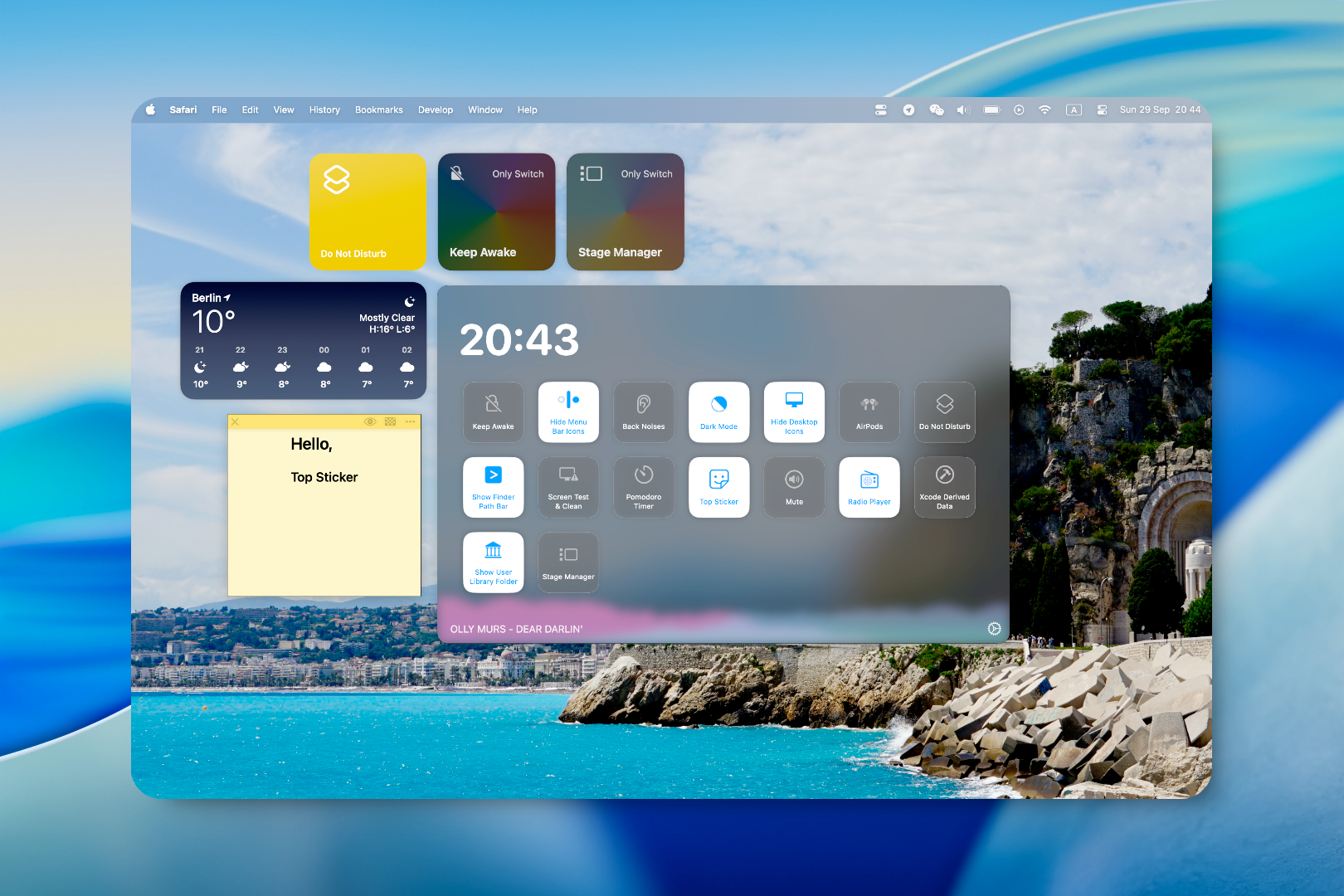
This open source utility (5,300+ GitHub stars) puts Dark Mode, desktop icon visibility, Night Shift, AirPods connection, KeepAwake, and more behind single clicks. The interface is clean, the toggles are instant, and you can customize which ones appear.
The killer feature for MacBook Pro owners is hide notch - a toggle that blacks out the screen area around the notch. It's purely cosmetic, but for anyone bothered by the notch interrupting fullscreen content, it works surprisingly well. The implementation supports dynamic wallpapers and handles multiple desktops correctly.
Beyond basic toggles, OnlySwitch includes a radio player, screen test mode for checking dead pixels, menu bar icon hiding (meta but useful), and music playback controls. The "Evolution" feature lets you add custom Shell or AppleScript switches - essentially turning it into a platform for macOS automation.
Version 2.5+ added Apple Widgets support for macOS Sonoma and above. You can put switches directly on your desktop or in Notification Center, triggering them without even opening the menu bar app.
Caveats: Low Power Mode requires password input because it uses root-level terminal commands. The hide notch feature only works on MacBook Pro built-in displays with the physical notch.
Best for: MacBook Pro owners tired of the notch, people who toggle Dark Mode frequently, automation enthusiasts who want scriptable switches
Platform: macOS 13+ (Ventura)
License: GPL-3.0 (Open Source)
Apple Silicon: Native
Maccy - Clipboard History Without the Privacy Nightmare
Your Mac's clipboard holds exactly one thing. Copy something new, and the previous content disappears forever. Maccy keeps everything in searchable history without becoming another subscription service mining your data.
The interface is deliberately minimal - press Cmd+Shift+C and your clipboard history appears. Type to search, Enter to copy, Option+Enter to paste directly. The entire workflow is keyboard-driven because reaching for your mouse breaks focus.
What sets Maccy apart is privacy-first architecture. If your password manager clears a copied password from the clipboard, Maccy respects that and removes it from history too. It automatically ignores sensitive pasteboard types from 1Password, Bitwarden, KeePass, and other password managers. Everything stays local - no cloud sync, no accounts, no telemetry.
The search is fast enough to feel instant even with thousands of items. You can paste without formatting (Option+Shift+Enter strips all styling), delete specific items from history (Option+Delete), and configure which apps or content types to ignore entirely.
Best for: Developers copying code snippets, writers researching multiple sources, anyone who's ever thought "what was that thing I copied 10 minutes ago?"
Platform: macOS 14+ (Sonoma)
License: MIT (Open Source)
Apple Silicon: Native
→ Get Maccy or brew install maccy
MonitorControl - External Displays That Actually Respond to Your Keyboard
There's a specific brand of frustration reserved for pressing F1/F2 on your Mac keyboard and watching your external monitor completely ignore you. MonitorControl fixes this with hardware-level brightness control that feels native.
This open source utility (32,300 GitHub stars) uses DDC protocol to send commands directly to your monitor. Press brightness keys, get the native macOS OSD. Press volume keys, your monitor's speakers respond. It's the integration Apple should have built years ago.
What makes it genuinely useful is the multi-monitor intelligence. The app detects which display your cursor is on and adjusts that one. Keyboard shortcuts work, menu bar sliders provide precision control, and it handles edge cases like clamshell mode and external monitors with different capabilities.
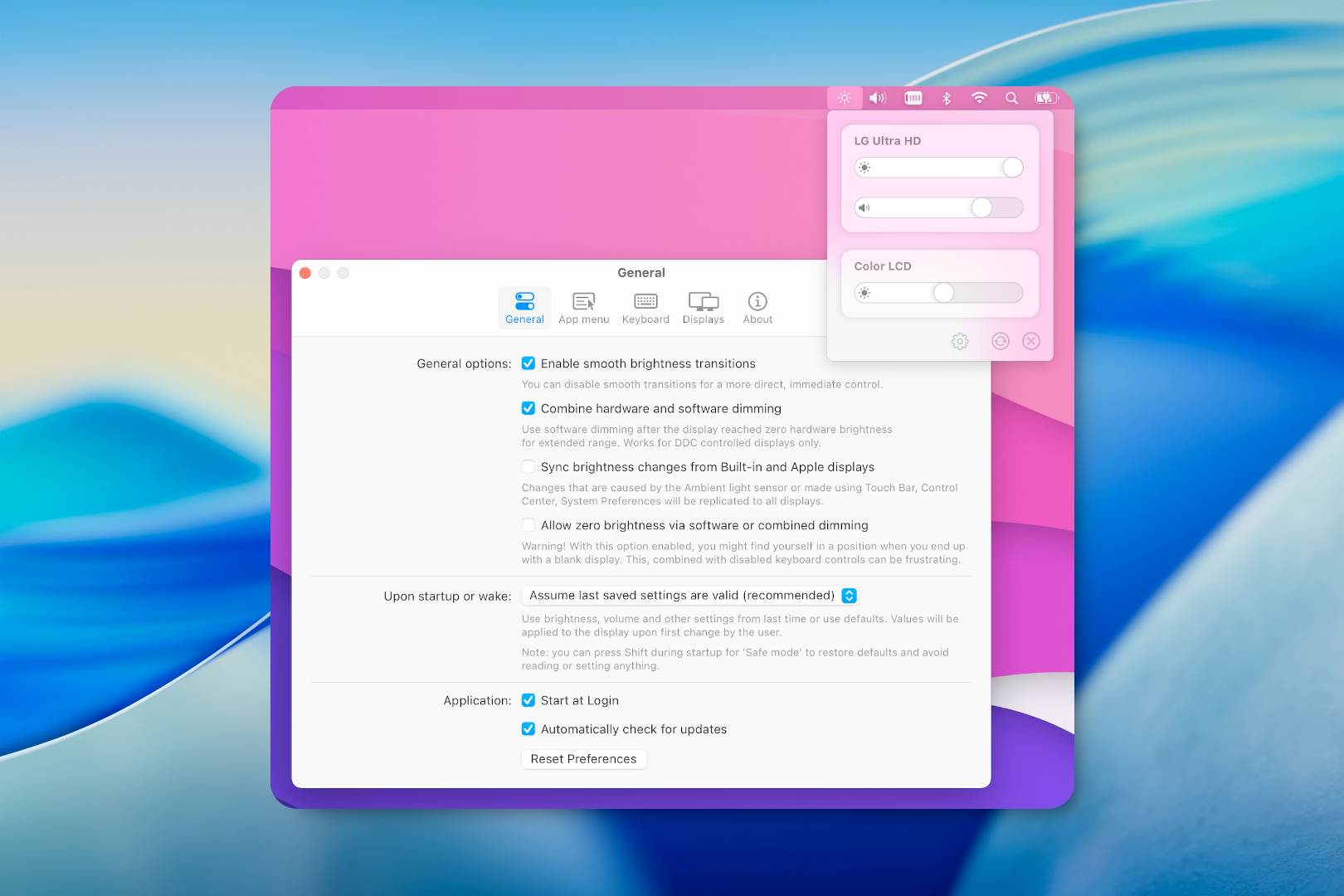
The implementation supports multiple protocols - DDC for external displays, native Apple control for Thunderbolt displays, gamma table control for software dimming when hardware DDC isn't available. For DisplayLink docks that don't support DDC, it falls back to software dimming gracefully.
Best for: Anyone with external monitors, multi-display workflows, people tired of hunting for physical monitor buttons
Platform: macOS 10.15+
License: MIT (Open Source)
Apple Silicon: Native
Found this helpful?
We run Mac App Daily as a side project because we believe macOS deserves better curation than algorithm-driven app stores provide.
Every pick here comes from community voting on Reddit — we just do the filtering so you don't have to.
Join our weekly newsletter for 5 curated apps every Monday — no spam, just the best new Mac software.
Disclosure: Some links in this post may be affiliate links. If you purchase through these links, we may earn a commission at no extra cost to you. This helps us keep the site running and continue curating great Mac software. We only recommend tools we genuinely use and believe in.